

Slack Integration
Connect Rapydo to Slack to receive database monitoring notifications and interact with Scout AI directly from Slack.Overview
- Receive real-time database alerts and notifications in Slack channels
- Interact with Scout AI directly from Slack using natural language
- Keep your team informed about database health without leaving Slack
Setup Wizard
The Slack Integration Setup guides you through four steps to connect your workspace.1
Enter Workspace Details
Configure your Slack workspace domain and configuration token.Click Create App & Authorize to proceed.
string
required
Your Slack workspace domain. This is the subdomain of your Slack URL. For example, if your Slack URL is
mycompany.slack.com, enter mycompany.string
required
Your Slack configuration token obtained from Slack app settings. Starts with
xoxe.xoxp-...2
Authorize Application
Follow the Slack authorization flow to grant Rapydo access to your workspace. You’ll be redirected to Slack to approve the permissions.
3
Store App Token
Configure the app token for Socket Mode support. This enables real-time communication between Rapydo and Slack.
4
Complete Setup
Review your configuration and finalize the integration.
Connection Status
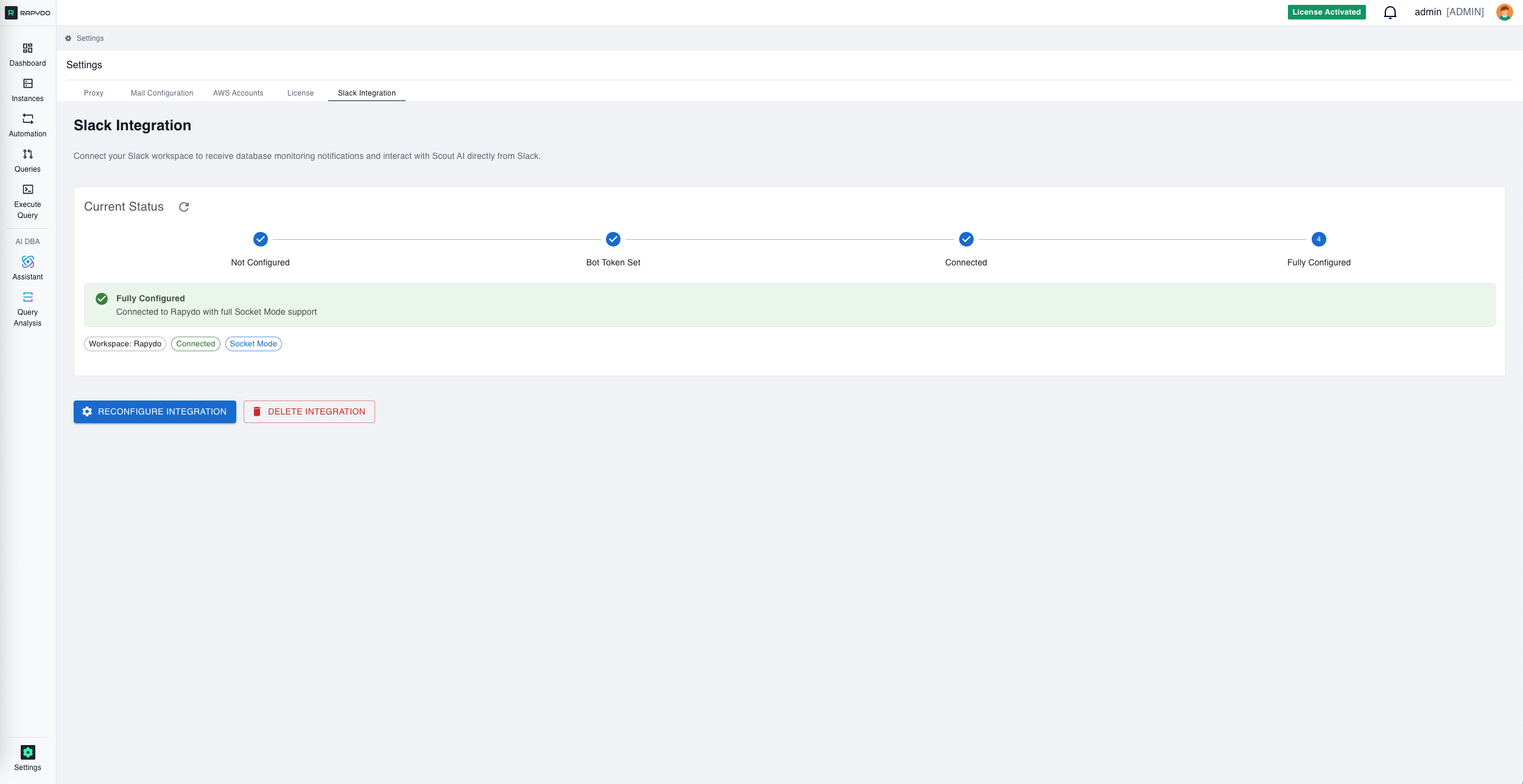
Once setup is complete, the Current Status section displays your progress through four stages:
A fully configured integration shows:
- Workspace — The name of your connected Slack workspace
- Connection Status — Shows “Connected” when the integration is active
- Mode — Displays “Socket Mode” when real-time features are enabled
Managing the Integration
Set Up Integration
If no integration is configured, click Set Up Integration to launch the setup wizard.Reconfigure Integration
Once the integration is configured, click Reconfigure Integration to update your Slack connection settings. Use this if you need to:- Update tokens
- Reconnect after a disconnection
- Change workspace settings