> ## Documentation Index
> Fetch the complete documentation index at: https://docs.rapydo.io/llms.txt
> Use this file to discover all available pages before exploring further.
# Mail configuration
# Mail Configuration
Set up email notifications for alerts, reports, and system notifications.
## Overview
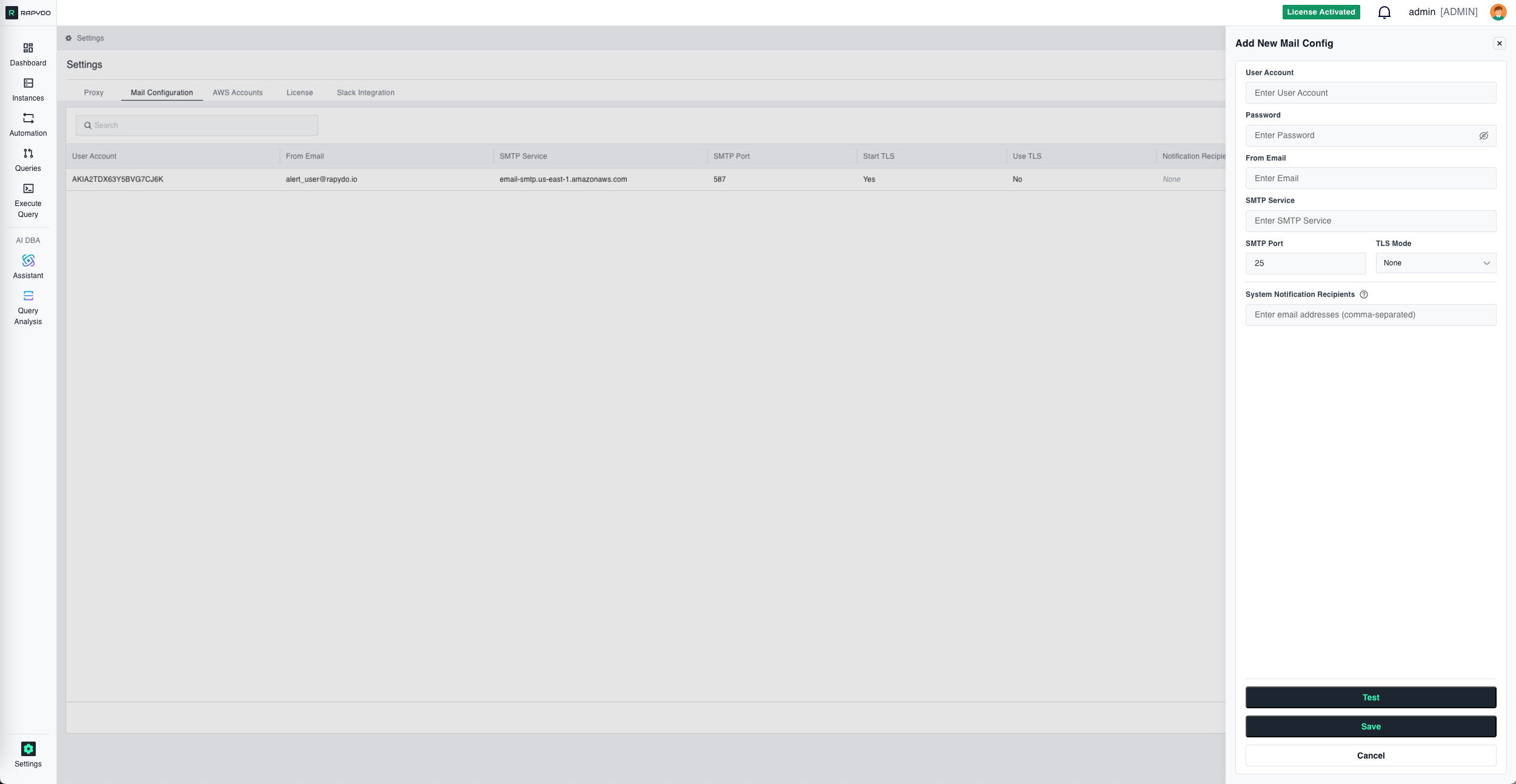 The Mail Configuration tab allows you to configure SMTP settings for sending email notifications from Rapydo. This enables alerts for database issues, scheduled reports, and system notifications.
## Adding a Mail Configuration
The Mail Configuration tab allows you to configure SMTP settings for sending email notifications from Rapydo. This enables alerts for database issues, scheduled reports, and system notifications.
## Adding a Mail Configuration
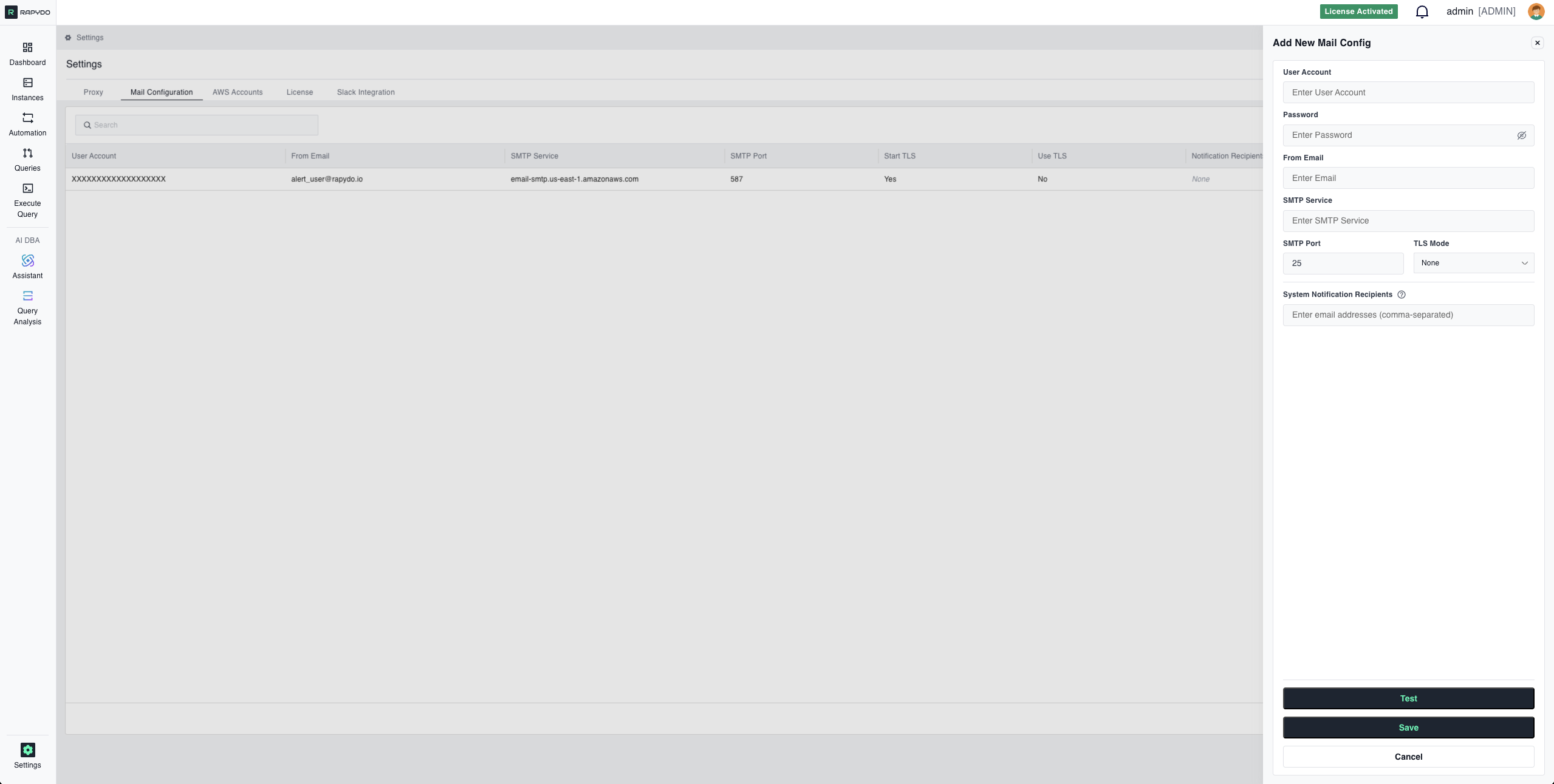 Click **Add New Mail Configuration** to open the configuration form.
### Configuration Fields
SMTP username or AWS SES access key ID.
SMTP password or AWS SES secret access key.
The sender email address that will appear on outgoing notifications.
SMTP server hostname. For AWS SES, use the regional endpoint (e.g., `email-smtp.us-east-1.amazonaws.com`).
Server port number. Common values:
* **Port 25** — Default SMTP (often blocked)
* **Port 587** — SMTP with STARTTLS (recommended)
* **Port 465** — SMTP over SSL
Select the encryption mode:
* **None** — No encryption
* **Start TLS** — Upgrade to TLS after connecting
* **Use TLS** — TLS from the start
Comma-separated list of email addresses that will receive system notifications.
### Actions
* **Test** — Send a test email to verify the configuration works
* **Save** — Add the mail configuration
* **Cancel** — Discard changes and close the form
## Managing Mail Configurations
The mail configuration list displays all configured SMTP settings with key details:
| Column | Description |
| ----------------------- | --------------------------- |
| User Account | SMTP username or access key |
| From Email | Sender email address |
| SMTP Service | SMTP server hostname |
| SMTP Port | Server port |
| Start TLS | TLS on connect setting |
| Use TLS | Full TLS setting |
| Notification Recipients | Configured recipients |
Use the action menu (⋮) on each row to edit or delete existing configurations.
**Table Settings** — Customize which columns are displayed in the list.
Click **Add New Mail Configuration** to open the configuration form.
### Configuration Fields
SMTP username or AWS SES access key ID.
SMTP password or AWS SES secret access key.
The sender email address that will appear on outgoing notifications.
SMTP server hostname. For AWS SES, use the regional endpoint (e.g., `email-smtp.us-east-1.amazonaws.com`).
Server port number. Common values:
* **Port 25** — Default SMTP (often blocked)
* **Port 587** — SMTP with STARTTLS (recommended)
* **Port 465** — SMTP over SSL
Select the encryption mode:
* **None** — No encryption
* **Start TLS** — Upgrade to TLS after connecting
* **Use TLS** — TLS from the start
Comma-separated list of email addresses that will receive system notifications.
### Actions
* **Test** — Send a test email to verify the configuration works
* **Save** — Add the mail configuration
* **Cancel** — Discard changes and close the form
## Managing Mail Configurations
The mail configuration list displays all configured SMTP settings with key details:
| Column | Description |
| ----------------------- | --------------------------- |
| User Account | SMTP username or access key |
| From Email | Sender email address |
| SMTP Service | SMTP server hostname |
| SMTP Port | Server port |
| Start TLS | TLS on connect setting |
| Use TLS | Full TLS setting |
| Notification Recipients | Configured recipients |
Use the action menu (⋮) on each row to edit or delete existing configurations.
**Table Settings** — Customize which columns are displayed in the list.