> ## Documentation Index
> Fetch the complete documentation index at: https://docs.rapydo.io/llms.txt
> Use this file to discover all available pages before exploring further.
# Dashboard View
> Detailed breakdown of all dashboard metrics and widgets
***
 ## Dashboard Controls
### Time Range
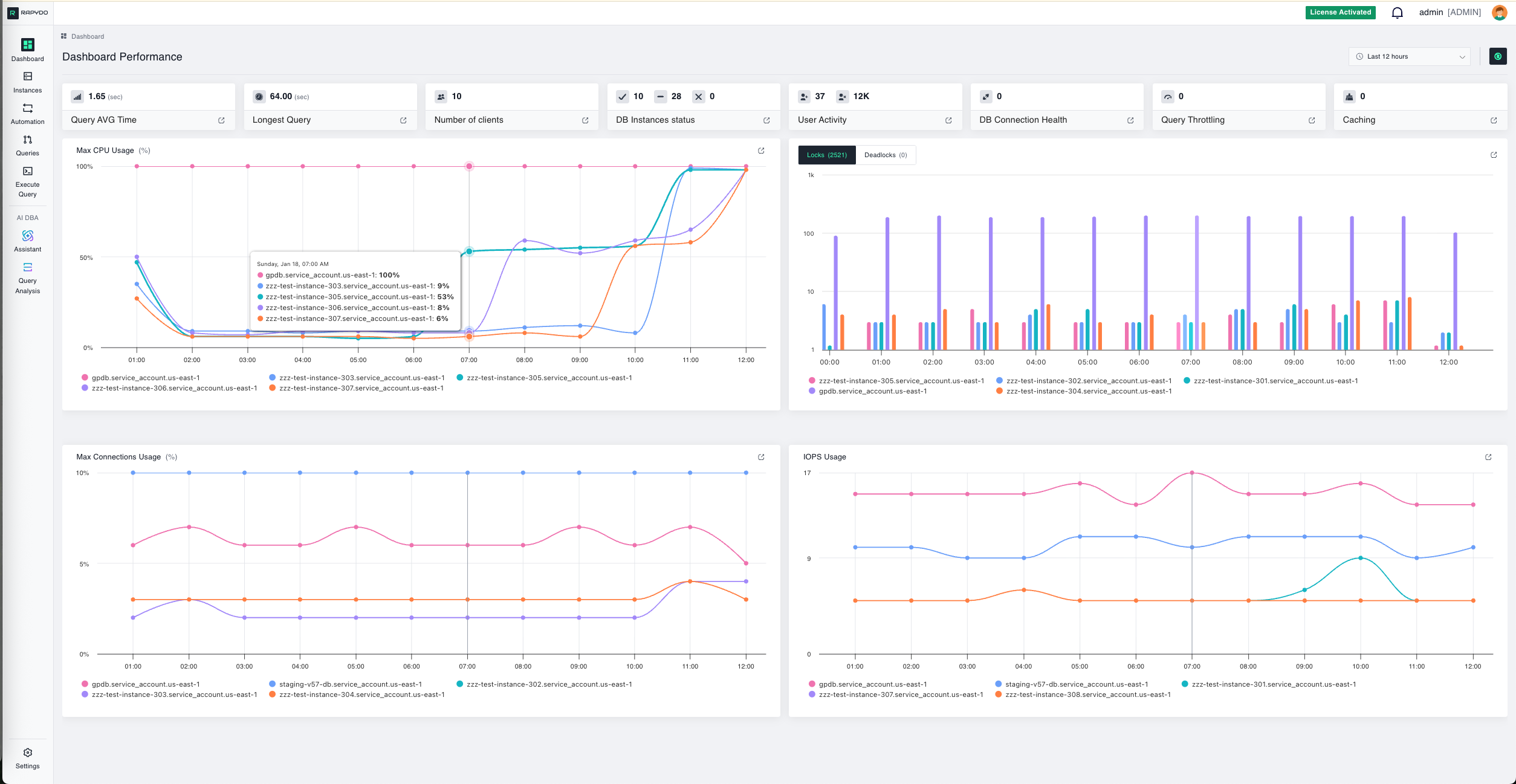
This widget displays the time range for the data represented in the graphs and metrics. You can adjust the view to show performance and activity from the last 3, 6, 12, 24, or 48 hours based on your monitoring needs.
**Use this to:**
* Focus on recent incidents or performance spikes
* Compare current activity to historical patterns
* Zoom in on specific time windows for detailed analysis
***
## Instance & Health Metrics
### DB Instances Status
This widget displays the total number of database instances across three states:
* **Configured**: Instances discovered and actively monitored by Rapydo
* **Not Configured**: Instances detected but not yet configured for monitoring
* **Not Available**: Instances that cannot be reached or are unavailable
Clicking this widget navigates to the **Databases** page for full instance details.
### DB Connection Health
This widget shows the count of unclosed (unhealthy) connections across all monitored instances.
**What to watch for:**
A non-zero unclosed connection count could indicate network issues, resource constraints, authentication problems, or connection pool exhaustion. Investigate immediately to prevent system downtime or performance degradation.
***
## User & Client Activity
### User Activity
Displays the current number of active versus inactive users across your database infrastructure:
* **Active Users**: Users currently executing queries or maintaining active sessions
* **Inactive Users**: Users connected but not performing any significant activity
**Optimization tip:**
A high inactive user count with low activity might indicate a need for session timeout adjustments or automated cleanup of inactive connections to free up resources.
### Number of Clients
This metric shows the total number of active database clients. A client refers to an application or user connection to the database.
**Why track this:**
* Understand connection patterns throughout the day
* Plan for peak usage periods
* Identify unexpected spikes in client connections
***
## Query Performance Metrics
### Query AVG Time
This widget shows the average query execution time across all database instances over the selected time range. It provides a quick snapshot of overall query performance.
**What to look for:**
* Sudden increases in average time may indicate performance degradation
* Compare to historical baselines to identify trends
* Use this as a starting point for query optimization efforts
### Longest Query
Displays the duration of the longest-running query currently executing or completed during the selected time range.
**Why this matters:**
This metric helps identify potential bottlenecks and inefficiencies:
* Long-running queries can block other operations
* May indicate missing indexes or inefficient query structure
* Could signal the need for query optimization or resource scaling
**Click action:**
Opens a detail view with two tabs:
* **Summary statistics** — aggregated stats for the longest queries
* **Detailed information** — full per-query details including query text, with options to analyze using Query Analysis
### Caching
Shows the current caching activity and efficiency across your database instances.
**What to watch for:**
* Low cache hit rates may indicate opportunities to optimize query patterns
* Sudden drops in caching efficiency can indicate configuration or workload changes
***
## Database Locking & Contention
### Locks & Deadlocks
This bar chart shows both locks and deadlocks over time across your database instances. Use the **Locks** / **Deadlocks** toggle on the widget to switch between the two views. Clicking a bar navigates to the **Queries** page filtered to that database instance and a 1-hour window starting at the clicked timestamp.
Clicking the widget title opens a detail view with two tabs:
* **Number of locks**
* **Number of deadlocks**
**Understanding locks:**
Database locks are mechanisms to control concurrent access to data during transactions. While normal, excessive locking can indicate contention issues.
**What to investigate:**
* Large spikes in lock or deadlock counts
* Sustained high lock levels
* Correlation between locks and slow queries
### DEADLOCKS
This bar chart shows the number of deadlocks encountered across your database instances over time.
**What are deadlocks?**
Deadlocks occur when two or more queries block each other, preventing further execution. For example:
* Transaction A locks Table 1, waiting for Table 2
* Transaction B locks Table 2, waiting for Table 1
* Neither can proceed, creating a deadlock
**Why it's critical:**
* Deadlocks can cause transaction failures
* May indicate poor transaction design or locking strategies
* Repeated deadlocks suggest the need for query refactoring
***
## Resource Utilization Metrics
### Max CPU Usage
This line chart shows CPU usage (%) across different database instances over time. Each colored line represents a specific instance.
**What to monitor:**
* Instances approaching 100% CPU utilization
* Sustained high CPU usage indicating resource-intensive workloads
* Sudden spikes that correlate with slow query performance
**Click action:**
Clicking a data point navigates to the **Queries** page filtered to that database instance and a 1-hour window ending at the clicked timestamp.
**Performance tip:**
If an instance consistently runs above 80% CPU, consider:
* Optimizing resource-intensive queries
* Scaling to a larger instance size
* Distributing load across additional instances
### Max Connections Usage
This line chart displays the percentage (%) of maximum database connections being used across different instances over time.
**Why this matters:**
Each database instance has a connection limit. When you approach this limit:
* New connection attempts will fail
* Applications may experience connection errors
* Database performance can degrade
**Click action:**
Clicking a data point navigates to the **Queries** page filtered to that database instance and a 1-hour window ending at the clicked timestamp.
**Best practice:**
* Monitor instances approaching 80-90% connection utilization
* Implement connection pooling in applications
* Consider scaling instance size if sustained high connection usage occurs
### IOPS Usage
This line chart shows Input/Output Operations Per Second (IOPS) for each database instance. IOPS measures the performance of your storage system. Values are shown as raw numbers (no percentage).
**Understanding IOPS:**
* **High IOPS**: Indicates heavy read/write activity
* **Low IOPS**: Suggests light database activity or caching effectiveness
* **Spikes**: Often correlate with batch jobs, reports, or data loads
**Click action:**
Clicking a data point navigates to the **Queries** page filtered to that database instance and a 1-hour window ending at the clicked timestamp.
**Optimization strategies:**
* If sustained high IOPS occur, consider:
* Scaling to faster storage (e.g., Provisioned IOPS on AWS)
* Optimizing queries to reduce disk reads
* Implementing better indexing strategies
* Adding read replicas to distribute load
***
## Drilling Down for Details
Every widget on the dashboard is clickable, providing deeper insights into specific metrics. When you click on a widget, you'll see detailed information, historical data, and actionable options for that metric.
### Example: Clicking the Longest Query Widget
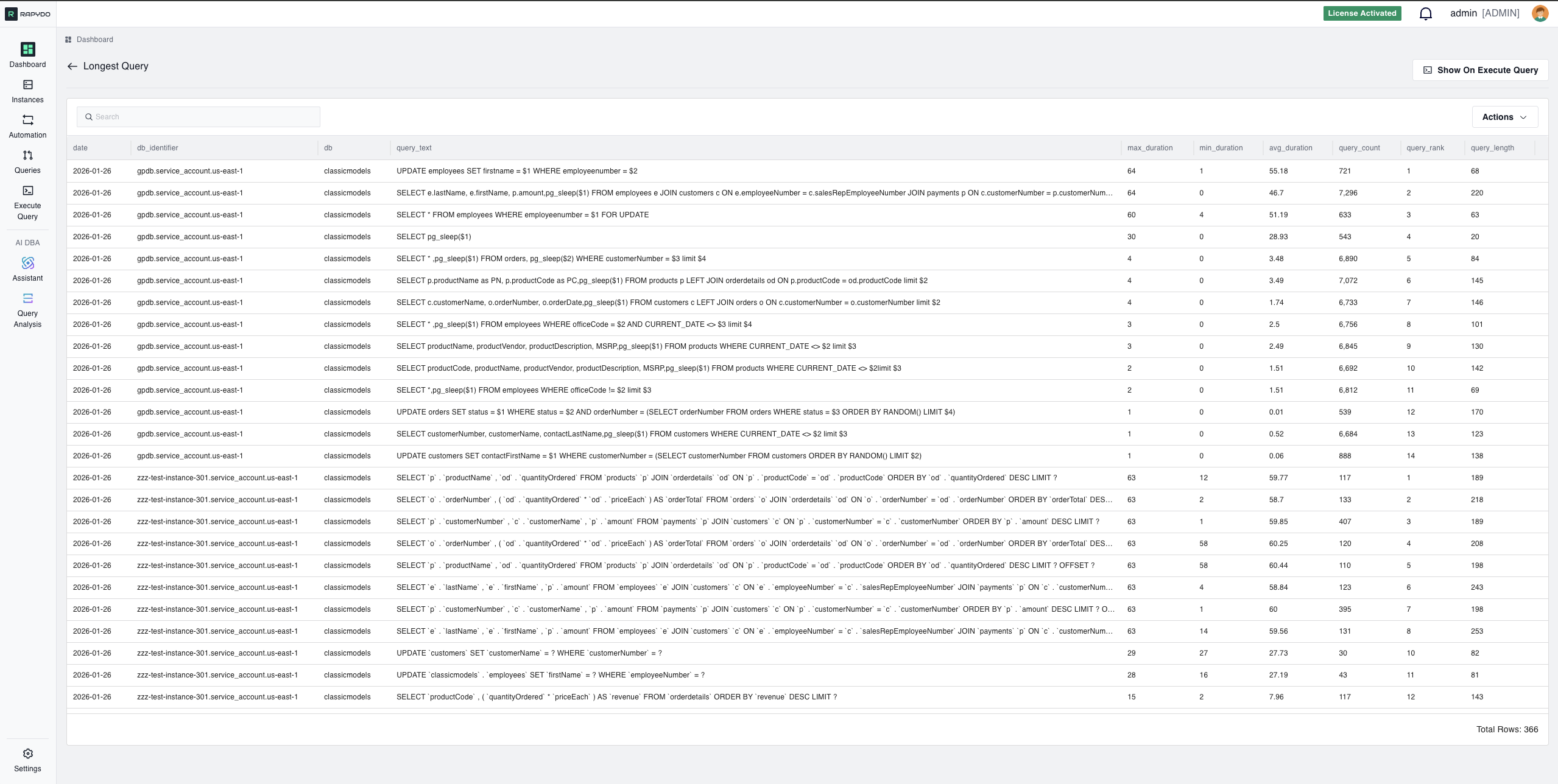
When you click on the **Longest Query** widget, you open a detailed view showing all currently running queries sorted by execution time.
## Dashboard Controls
### Time Range
This widget displays the time range for the data represented in the graphs and metrics. You can adjust the view to show performance and activity from the last 3, 6, 12, 24, or 48 hours based on your monitoring needs.
**Use this to:**
* Focus on recent incidents or performance spikes
* Compare current activity to historical patterns
* Zoom in on specific time windows for detailed analysis
***
## Instance & Health Metrics
### DB Instances Status
This widget displays the total number of database instances across three states:
* **Configured**: Instances discovered and actively monitored by Rapydo
* **Not Configured**: Instances detected but not yet configured for monitoring
* **Not Available**: Instances that cannot be reached or are unavailable
Clicking this widget navigates to the **Databases** page for full instance details.
### DB Connection Health
This widget shows the count of unclosed (unhealthy) connections across all monitored instances.
**What to watch for:**
A non-zero unclosed connection count could indicate network issues, resource constraints, authentication problems, or connection pool exhaustion. Investigate immediately to prevent system downtime or performance degradation.
***
## User & Client Activity
### User Activity
Displays the current number of active versus inactive users across your database infrastructure:
* **Active Users**: Users currently executing queries or maintaining active sessions
* **Inactive Users**: Users connected but not performing any significant activity
**Optimization tip:**
A high inactive user count with low activity might indicate a need for session timeout adjustments or automated cleanup of inactive connections to free up resources.
### Number of Clients
This metric shows the total number of active database clients. A client refers to an application or user connection to the database.
**Why track this:**
* Understand connection patterns throughout the day
* Plan for peak usage periods
* Identify unexpected spikes in client connections
***
## Query Performance Metrics
### Query AVG Time
This widget shows the average query execution time across all database instances over the selected time range. It provides a quick snapshot of overall query performance.
**What to look for:**
* Sudden increases in average time may indicate performance degradation
* Compare to historical baselines to identify trends
* Use this as a starting point for query optimization efforts
### Longest Query
Displays the duration of the longest-running query currently executing or completed during the selected time range.
**Why this matters:**
This metric helps identify potential bottlenecks and inefficiencies:
* Long-running queries can block other operations
* May indicate missing indexes or inefficient query structure
* Could signal the need for query optimization or resource scaling
**Click action:**
Opens a detail view with two tabs:
* **Summary statistics** — aggregated stats for the longest queries
* **Detailed information** — full per-query details including query text, with options to analyze using Query Analysis
### Caching
Shows the current caching activity and efficiency across your database instances.
**What to watch for:**
* Low cache hit rates may indicate opportunities to optimize query patterns
* Sudden drops in caching efficiency can indicate configuration or workload changes
***
## Database Locking & Contention
### Locks & Deadlocks
This bar chart shows both locks and deadlocks over time across your database instances. Use the **Locks** / **Deadlocks** toggle on the widget to switch between the two views. Clicking a bar navigates to the **Queries** page filtered to that database instance and a 1-hour window starting at the clicked timestamp.
Clicking the widget title opens a detail view with two tabs:
* **Number of locks**
* **Number of deadlocks**
**Understanding locks:**
Database locks are mechanisms to control concurrent access to data during transactions. While normal, excessive locking can indicate contention issues.
**What to investigate:**
* Large spikes in lock or deadlock counts
* Sustained high lock levels
* Correlation between locks and slow queries
### DEADLOCKS
This bar chart shows the number of deadlocks encountered across your database instances over time.
**What are deadlocks?**
Deadlocks occur when two or more queries block each other, preventing further execution. For example:
* Transaction A locks Table 1, waiting for Table 2
* Transaction B locks Table 2, waiting for Table 1
* Neither can proceed, creating a deadlock
**Why it's critical:**
* Deadlocks can cause transaction failures
* May indicate poor transaction design or locking strategies
* Repeated deadlocks suggest the need for query refactoring
***
## Resource Utilization Metrics
### Max CPU Usage
This line chart shows CPU usage (%) across different database instances over time. Each colored line represents a specific instance.
**What to monitor:**
* Instances approaching 100% CPU utilization
* Sustained high CPU usage indicating resource-intensive workloads
* Sudden spikes that correlate with slow query performance
**Click action:**
Clicking a data point navigates to the **Queries** page filtered to that database instance and a 1-hour window ending at the clicked timestamp.
**Performance tip:**
If an instance consistently runs above 80% CPU, consider:
* Optimizing resource-intensive queries
* Scaling to a larger instance size
* Distributing load across additional instances
### Max Connections Usage
This line chart displays the percentage (%) of maximum database connections being used across different instances over time.
**Why this matters:**
Each database instance has a connection limit. When you approach this limit:
* New connection attempts will fail
* Applications may experience connection errors
* Database performance can degrade
**Click action:**
Clicking a data point navigates to the **Queries** page filtered to that database instance and a 1-hour window ending at the clicked timestamp.
**Best practice:**
* Monitor instances approaching 80-90% connection utilization
* Implement connection pooling in applications
* Consider scaling instance size if sustained high connection usage occurs
### IOPS Usage
This line chart shows Input/Output Operations Per Second (IOPS) for each database instance. IOPS measures the performance of your storage system. Values are shown as raw numbers (no percentage).
**Understanding IOPS:**
* **High IOPS**: Indicates heavy read/write activity
* **Low IOPS**: Suggests light database activity or caching effectiveness
* **Spikes**: Often correlate with batch jobs, reports, or data loads
**Click action:**
Clicking a data point navigates to the **Queries** page filtered to that database instance and a 1-hour window ending at the clicked timestamp.
**Optimization strategies:**
* If sustained high IOPS occur, consider:
* Scaling to faster storage (e.g., Provisioned IOPS on AWS)
* Optimizing queries to reduce disk reads
* Implementing better indexing strategies
* Adding read replicas to distribute load
***
## Drilling Down for Details
Every widget on the dashboard is clickable, providing deeper insights into specific metrics. When you click on a widget, you'll see detailed information, historical data, and actionable options for that metric.
### Example: Clicking the Longest Query Widget
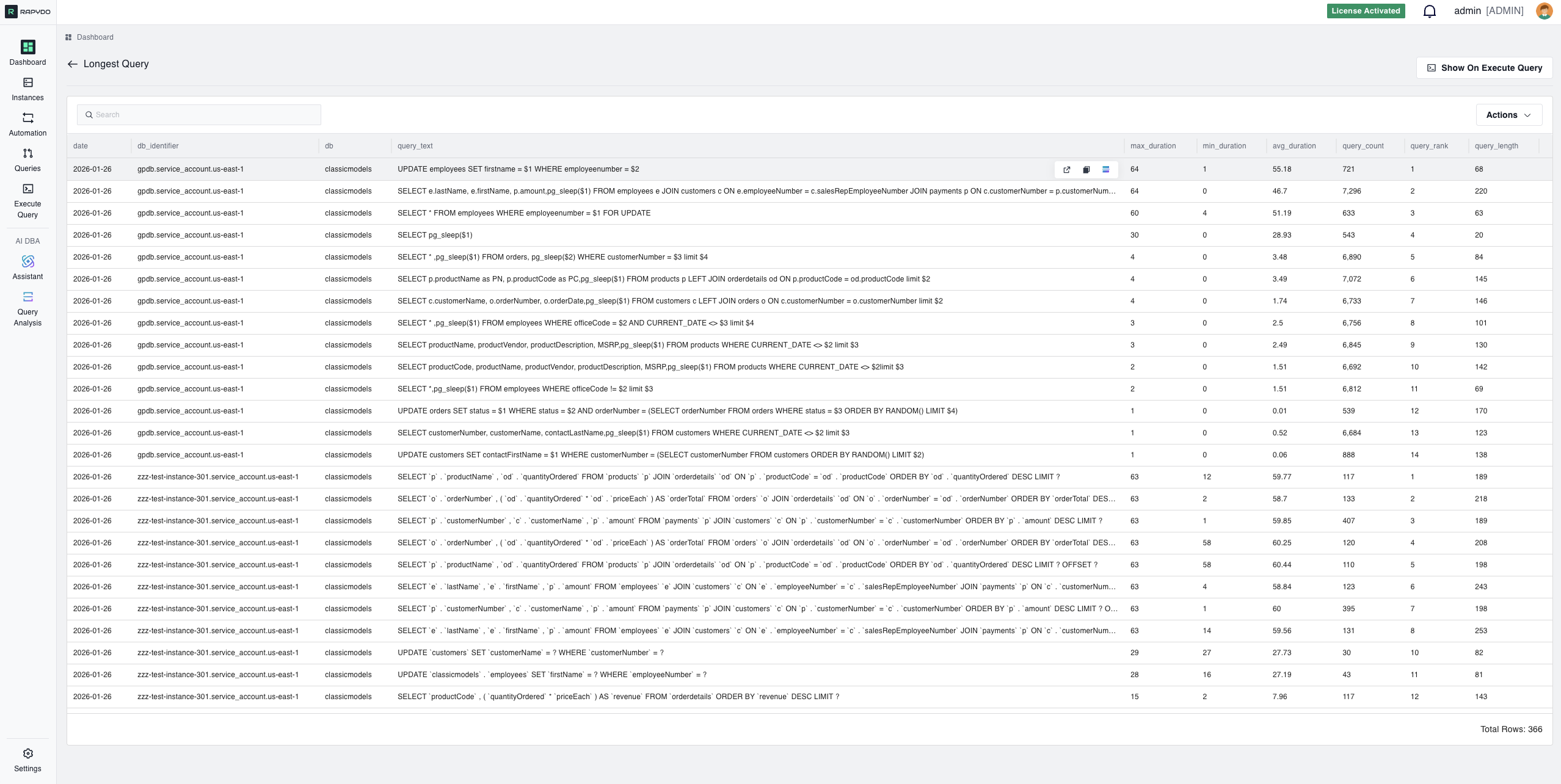
When you click on the **Longest Query** widget, you open a detailed view showing all currently running queries sorted by execution time.
 **What you can do in the detailed view:**
* **View Query Details**: See the full SQL query text, execution time, and database instance
* **Analyze Performance**: Understand which queries are consuming the most resources
* **Identify Bottlenecks**: Spot queries that may be causing performance issues
* **Take Action**:
* Kill long-running queries that are blocking resources
* Analyze the query using Rapydo's AI-powered Query Analysis
* Copy the query for optimization in the Execute Query tool
* View the query execution plan and get index recommendations
### Interactive Widget Navigation
Each widget provides a gateway to more detailed information:
| **Widget** | **Detailed View Shows** |
| ------------------------- | --------------------------------------------------------------------------------------- |
| **Longest Query** | All running queries sorted by duration, with ability to analyze or kill queries |
| **Locks & Deadlocks** | Active locks and deadlocks split across two tabs: Number of locks / Number of deadlocks |
| **DEADLOCKS** | Deadlock history, involved queries, and resolution timeline |
| **Max CPU Usage** | Per-instance CPU trends, peak usage times, and resource-intensive queries |
| **Max Connections Usage** | Connection pool status, active vs idle connections, connection history |
| **IOPS Usage** | Disk I/O patterns, read/write breakdown, storage performance trends |
| **DB Instances Status** | Full instance details, health checks, configuration, and metrics |
**Pro Tip:** Click on any metric that looks unusual or concerning to investigate further and take immediate action.
***
## Quick Reference: When to Investigate
| **Metric** | **Investigate When** |
| ------------------------- | --------------------------------------- |
| **DB Instances Status** | Instances are stopped unexpectedly |
| **DB Connection Health** | Unhealthy connections appear |
| **User Activity** | High idle users with low activity |
| **Query AVG Time** | Sudden increase vs. baseline |
| **Longest Query** | Exceeds acceptable thresholds |
| **DEADLOCKS** | Any deadlocks occur |
| **Locks & Deadlocks** | Large spikes or sustained high counts |
| **Max CPU Usage** | Sustained >80% or spikes to 100% |
| **Max Connections Usage** | Approaching 90% utilization |
| **IOPS Usage** | Sustained high levels or unusual spikes |
***
## Next Steps
* [Set Up Alert Rules](/automation/alerts_triggers_and_actions) - Get notified when metrics exceed thresholds
* [Configure Scout Rules](/automation/scout_triggers_and_actions) - Automatically respond to long-running queries
* [Analyze Query Performance](/queries/introduction_to_queries) - Deep dive into slow queries
* [Monitor Locks & Waits](/queries/queries_view) - Investigate blocking queries
**What you can do in the detailed view:**
* **View Query Details**: See the full SQL query text, execution time, and database instance
* **Analyze Performance**: Understand which queries are consuming the most resources
* **Identify Bottlenecks**: Spot queries that may be causing performance issues
* **Take Action**:
* Kill long-running queries that are blocking resources
* Analyze the query using Rapydo's AI-powered Query Analysis
* Copy the query for optimization in the Execute Query tool
* View the query execution plan and get index recommendations
### Interactive Widget Navigation
Each widget provides a gateway to more detailed information:
| **Widget** | **Detailed View Shows** |
| ------------------------- | --------------------------------------------------------------------------------------- |
| **Longest Query** | All running queries sorted by duration, with ability to analyze or kill queries |
| **Locks & Deadlocks** | Active locks and deadlocks split across two tabs: Number of locks / Number of deadlocks |
| **DEADLOCKS** | Deadlock history, involved queries, and resolution timeline |
| **Max CPU Usage** | Per-instance CPU trends, peak usage times, and resource-intensive queries |
| **Max Connections Usage** | Connection pool status, active vs idle connections, connection history |
| **IOPS Usage** | Disk I/O patterns, read/write breakdown, storage performance trends |
| **DB Instances Status** | Full instance details, health checks, configuration, and metrics |
**Pro Tip:** Click on any metric that looks unusual or concerning to investigate further and take immediate action.
***
## Quick Reference: When to Investigate
| **Metric** | **Investigate When** |
| ------------------------- | --------------------------------------- |
| **DB Instances Status** | Instances are stopped unexpectedly |
| **DB Connection Health** | Unhealthy connections appear |
| **User Activity** | High idle users with low activity |
| **Query AVG Time** | Sudden increase vs. baseline |
| **Longest Query** | Exceeds acceptable thresholds |
| **DEADLOCKS** | Any deadlocks occur |
| **Locks & Deadlocks** | Large spikes or sustained high counts |
| **Max CPU Usage** | Sustained >80% or spikes to 100% |
| **Max Connections Usage** | Approaching 90% utilization |
| **IOPS Usage** | Sustained high levels or unusual spikes |
***
## Next Steps
* [Set Up Alert Rules](/automation/alerts_triggers_and_actions) - Get notified when metrics exceed thresholds
* [Configure Scout Rules](/automation/scout_triggers_and_actions) - Automatically respond to long-running queries
* [Analyze Query Performance](/queries/introduction_to_queries) - Deep dive into slow queries
* [Monitor Locks & Waits](/queries/queries_view) - Investigate blocking queries